✨ Bot Settings
To open the settings:
type /settings or press ⚙️ Settings in the main menu (/start).
Available sections:
- ⚡ Trading – quick buttons, MEV Protect, default slippage
- 🤖 Auto-Buy – automatic purchase when entering a contract
- 👥 Copy Trading – copy-trading parameters
- 🎯 Sniper – sniper settings
- 🎨 Interface – token menu appearance
- 📊 Charts – display of charts in token menu
- 🔔 Notifications – (coming soon)
- 🌐 Language – language selection
💱 Trading
This section configures quick actions for trading on DEXes and Memepads (same interface, selectable via tab).
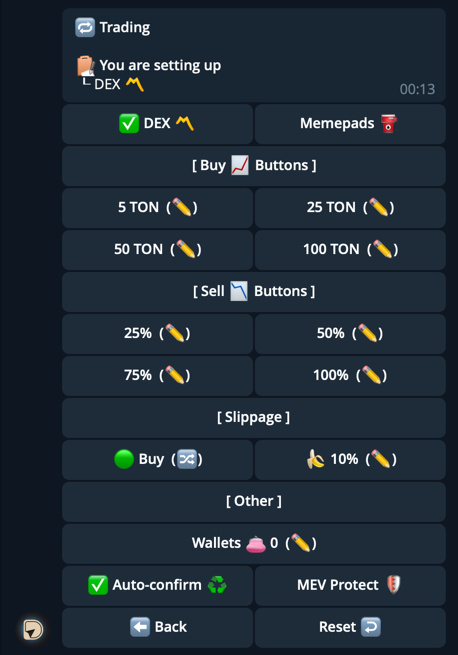
Available options:
- 📈 Buy buttons — set fixed TON amounts for quick buy
- 📉 Sell buttons — set percentage amounts for quick sell
- ⚖️ Slippage — allowed slippage, configurable separately for buy/sell
- 👛 Wallets — select default wallets. If none selected, the first wallet is used.
- ✅ Auto-confirmation — disables the “🚀 Swap” button. Trade executes instantly after choosing amount.
- 🛡 MEV Protect — protects from MEV attacks
- 🔄 Reset — reset all values to defaults
🤖 Auto-Buy
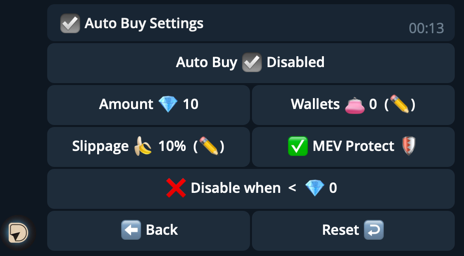
This menu enables automatic token purchase when you enter a contract address.
If enabled, the bot will buy immediately without any further confirmation.
Available settings:
- 💎 Amount — purchase size in TON
- 👛 Wallets — wallets used for the auto-buy
- 🍌 Slippage — allowed slippage for buy
- 🛡 MEV Protect — protection from MEV attacks
- ❌ Disable if < X TON — auto-buy will turn off automatically if balance drops below this threshold
With auto-buy enabled, the bot will instantly execute a trade when a contract is entered,
without any additional confirmation.
Use with caution — especially on low-liquidity tokens.
📸 Copy Trading
Here you can set default values for copying trades.
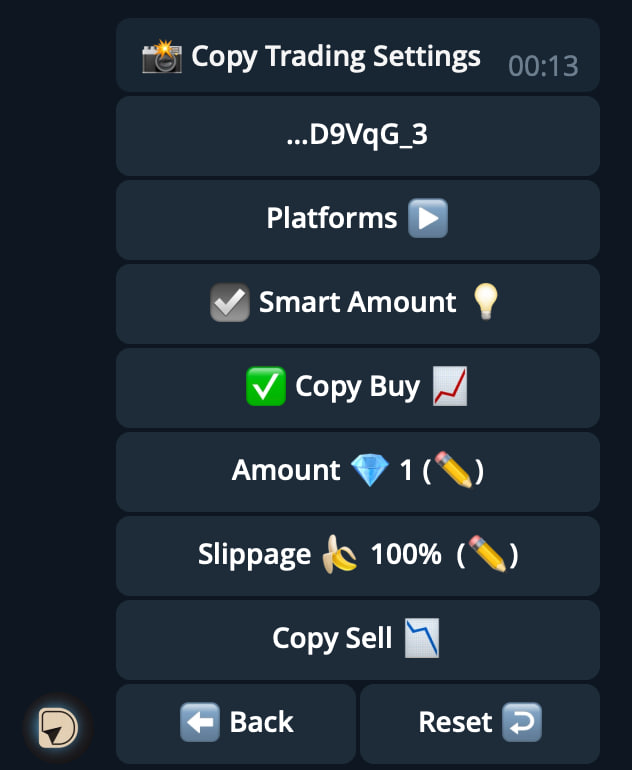
Options:
- 👛 Wallets — wallets used for copying trades
- 🏦 Platforms — filter by DEX or memepads
- 💡 Smart mode —
- On: trades are copied proportionally to the original amount
- Off: you set fixed amounts manually
- ✅ Buy — enable/disable copying buys
- 📉 Sell — enable/disable copying sells
- 💎 Amount — fixed trade size (if smart mode is off)
- ⚖️ Slippage — allowed slippage for copy trades
🔄 “Reset” button restores defaults.
🎯 Sniper
The Sniper menu sets the default values for new snipes.
All parameters can still be changed manually when creating a specific snipe.
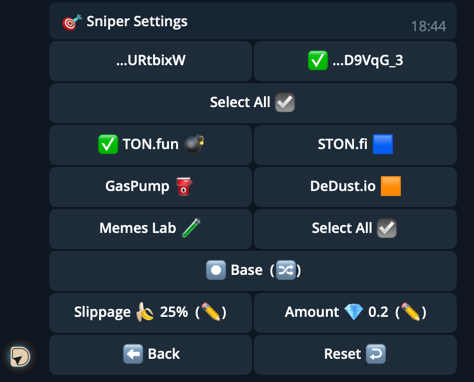
⚡ Basic Settings
- 👛 Wallets — which wallets will be used by default
- 🏦 Platforms — which memepads/DEXes the sniper will operate on
- 🍌 Slippage — allowed slippage for the transaction
- 💎 Amount — purchase size in TON
🛠 Advanced Settings
When Advanced mode is enabled, extra parameters become available:
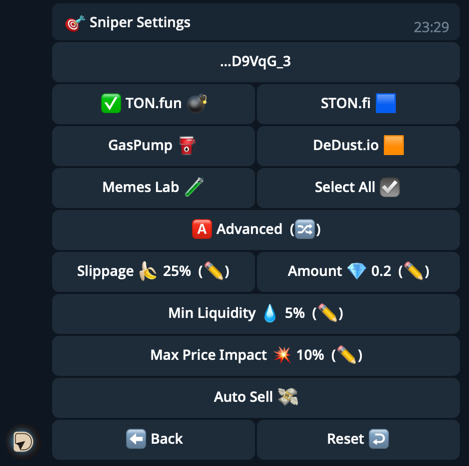
- 💧 Min. liquidity — the minimum liquidity threshold of the token required for the sniper to trigger
- 💥 Max. price impact — limits price impact to avoid unprofitable trades
🤖 Auto-Sell
The sniper can instantly sell a token after buying to quickly lock in profit.
Useful for highly volatile tokens that pump only on short-term hype.
- 💰 Sell amount — in percentage or fixed volume
- 🍌 Sell slippage — allowed slippage for the sell transaction
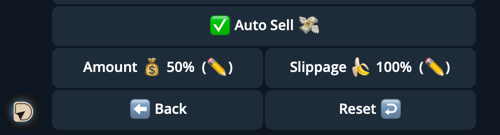
If Auto-Sell is enabled, the bot will perform an immediate sell after the buy.
👁 Interface Settings
Here you can customize the token menu appearance.
Two interface styles available:
- ⚡ Modern — modern block-style layout
- 🧱 Classic — traditional compact layout
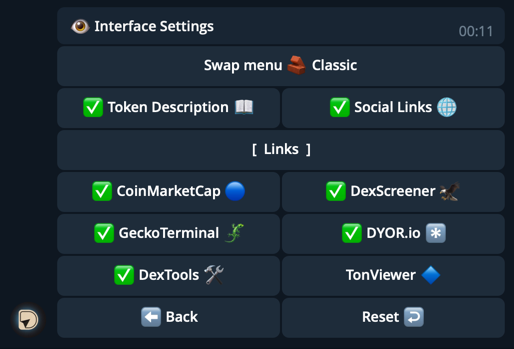
🔧 Options
- 📖 Token description — show/hide description
- 🌐 Social links — show/hide token socials
🔗 Tool Links
Choose which analytical services to show inside token cards:
- 🌐 CoinMarketCap
- 🦅 DexScreener
- 🦎 GeckoTerminal
- ❄️ DYOR.io
- 🛠 DexTools
- 🔷 TonViewer
📊 Display Example
Modern style:

Classic style:
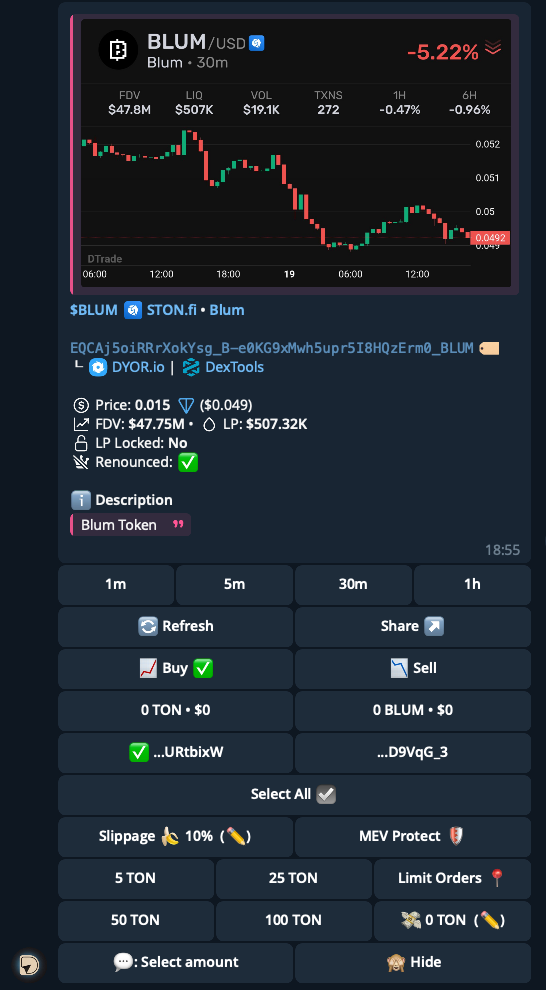
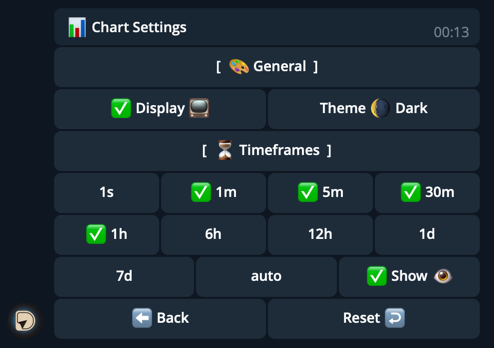
📊 Chart Settings
Here you manage chart display in the swap menu.
⚙️ General
- 📺 Display — enable/disable chart block
- 🌗 Theme — light or dark
⏳ Timeframes
You can choose which timeframes to display in the swap menu.
Enabled buttons will appear under the chart.
Available options:
1s · 1m · 5m · 30m · 1h · 6h · 12h · 1d · 7d · auto
Example: if you enable 1m, 5m, 30m, 1h — those will be shown as buttons below the chart.
🔔 Notifications
Coming soon...
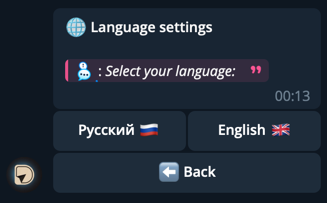
🌐 Language Settings
Here you can select the bot interface language.
Available:
- 🇷🇺 Russian
- 🇬🇧 English