👛 Wallet Setup
Before using DTrade, you first need to select your wallet.
To do this, enter /wallets, or go to the main menu (/start), then tap 👛 Wallets.
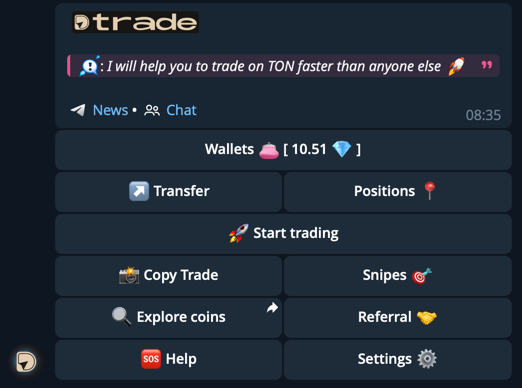
⚙️ Wallet Management
In the Wallet Management menu, you have access to:
- ➕ Create New – generate a new wallet
- 📩 Import – add an existing wallet using its seed phrase
- 📤 Export – get a list of all wallet addresses
- 💸 Transfer – send TON or tokens

You can add up to 32 wallets in DTrade.
🆕 Create Wallet
To create a new wallet, press ➕ New.
The bot will generate a unique address, which will immediately appear in the list.
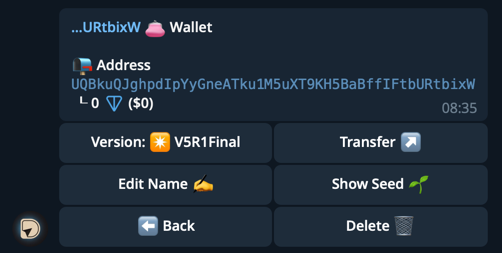
📩 Import Wallet
If you already have a TON wallet, you can import it:
- Tap 📩 Import
- Enter your seed phrase (24 words)
- The wallet will be added to the list and become available in the bot
📤 Export Wallets
With the 📤 Export option you can quickly get a list of all your wallet addresses.
The bot will send them in a message.
💸 Transfer
In the transfer menu you can send TON or tokens directly from the bot:
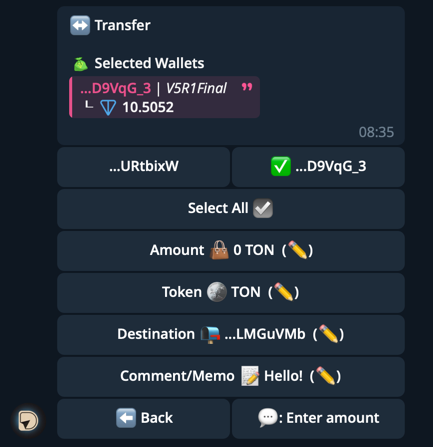
- ✅ Select one or more wallets
- 💎 Enter the amount to transfer
- 🪙 Choose the token (default is TON)
- 📬 Enter the recipient’s address
- 📝 Add a comment/Memo (optional)
- 🚀 Confirm the transfer
📜 Wallet Menu
By tapping a specific wallet, you open its management menu:
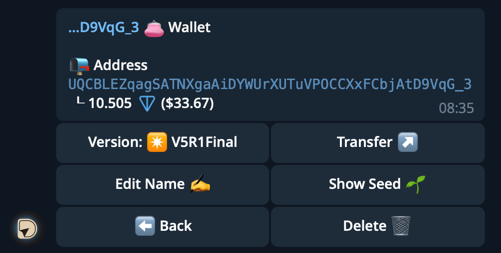
Available functions:
- ✨ Wallet Version — switch between V5R1 and V4R2
- 💸 Transfer — quick access to sending TON/tokens
- ✍️ Rename — assign a name for convenience
- 🌱 Seed Phrase — view the seed phrase
- 🗑 Delete — delete the wallet
Before deleting a wallet, make sure you have saved the seed phrase.
Without it, access to the wallet will be lost forever!